
Squarespace's New Home Dashboard Explained
Squarespace has recently introduced a brand new Home tab inside the website dashboard and if you’ve opened your site and thought “What is this?”, you’re not alone.
For years, most users have relied on the Website/Pages panel as the central hub of site management. Now, with the rollout of the Home tab, millions of users are seeing an entirely new interface.
If you're confused about the purpose of the Home dashboard, how to use it, or whether you even need it, this guide walks you through everything step-by-step.
What Is the Squarespace Home Dashboard?
The Home dashboard is a centralized hub designed to bring all of Squarespace’s tools, products, and analytics into one place. It’s also part of Squarespace’s wider push to highlight its full product ecosystem - domains, e-commerce, scheduling, payments, courses, and more.
Depending on your account, Squarespace may even default you to Home instead of Website when you log in.

Want a framework for designing the perfect homepage?

Need an expert to build your Squarespace website?
Book a free kick-off call with our team to discuss your project requirements in detail.
Customising Your Home Dashboard
At the top of the page, you’ll see a welcome banner and a Customize Home button. This lets you control which widgets appear. Think of these widgets as modular blocks you can turn on or off depending on what’s relevant to your site.
To edit the layout:
Click Home
Select Customize Home
Toggle widgets on or off
If you’re new to Squarespace or want a complete overview, keeping everything enabled is helpful.

1. “Get Started” Checklists
Squarespace offers a set of guided checklists to help you set up and launch your site. These may vary depending on the type of business you run, e-commerce, services, courses, etc.although many users see the same default list.
You can click View All to see the wider selection of checklists available. Be warned: it gets overwhelming fast.
Do you need to complete every checklist?
No. Only complete checklists that match the tools you actually use.
When you click into any checklist task, Squarespace opens a step-by-step setup wizard—great for beginners needing hands-on guidance.

2. Domain Management and Site Publishing
On the right side of the Home dashboard, you’ll see:
Your site preview
Your built-in Squarespace domain
The option to purchase a custom domain
A Publish Site button
Squarespace uses this panel to keep you within its ecosystem - domains, hosting, payments, scheduling, email campaigns, and more all loop back into the Home hub.
3. Site Performance & Analytics at a Glance
The analytics panel shows:
Traffic
Sources
Visits
Email subscribers
And other key metrics
You can adjust the date range (today, 7 days, 30 days) and toggle which analytics you want displayed.
While Squarespace offers deeper analytics on the left sidebar, this quick dashboard is useful for at-a-glance performance monitoring.
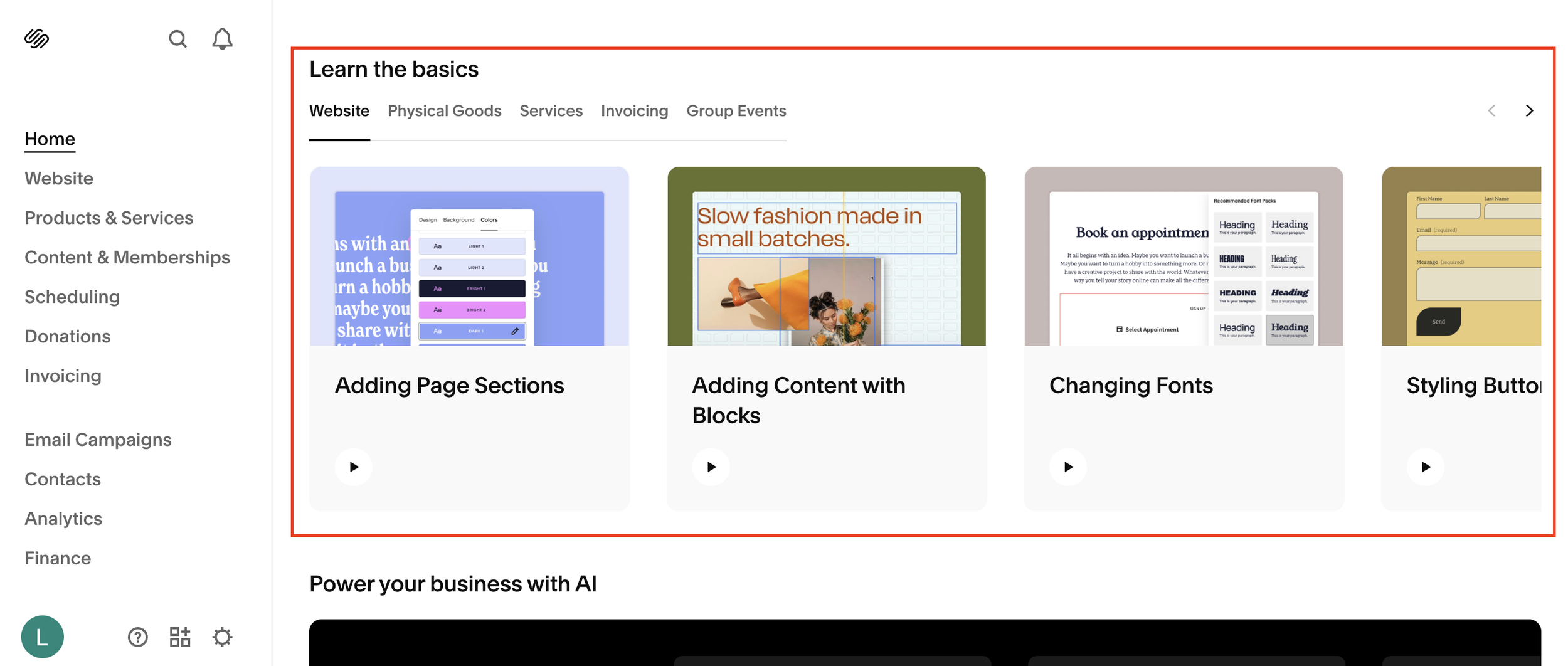
4. Squarespace Basics: Built-In Video Tutorials
Scrolling further, you’ll find a section dedicated to Squarespace basics, bite-sized tutorial videos covering:
Navigating the backend
Editing pages
SEO basics
Understanding the “Not Linked” section
And more
These are especially useful for beginners or anyone returning to Squarespace after a long time (the interface changes often).
5. Beacon AI Tools (Launched September)
Squarespace’s new Beacon AI features include:
Discount Composer
Product Composer
SEO Scanner
These tools can automatically generate:
Page titles
Page descriptions
Product descriptions
SEO improvements
It’s early days for Beacon AI, and these tools will likely evolve over time, but they’re already helpful for speeding up content creation.
6. “Run a Campaign” - Promoting Email Campaigns
Squarespace surfaces its email campaign tools here as well, encouraging you to create newsletters and automations.
If you click through, it takes you to the Email Campaigns dashboard where you can build:
Announcements
Promotions
Welcome emails
Automated sequences
Squarespace has hinted at major improvements coming in 2026 and beyond, so this area is worth keeping an eye on.
7. Discover More
The final section offers small tips, product spotlights, and links to other Squarespace tools. Most of these point toward additional services or paid add-ons.
Is the Squarespace Home Dashboard Actually Useful?
In short: Yes - but with limitations.
Pros
Centralises key analytics and tools
Helpful onboarding for new users
Good intro videos and checklists
AI tools are improving
Easy access to all Squarespace services
Cons
Can feel overwhelming
Promotes services you might not need
Some widgets feel redundant
Still missing flexibility and deeper customisation
Squarespace will almost certainly refine this over time, but as it stands, it’s a decent hub, especially if you’re new to the platform.
Final Thoughts
The Home dashboard pulls Squarespace’s tools, analytics, AI features, and setup steps into one place. Whether you love it or ignore it, understanding how it works will help you navigate Squarespace more confidently.
